> ## Documentation Index
> Fetch the complete documentation index at: https://docs.partio.io/llms.txt
> Use this file to discover all available pages before exploring further.
# Extension Overview
> The partio Chrome extension for viewing AI agent sessions directly on GitHub
# Extension Overview
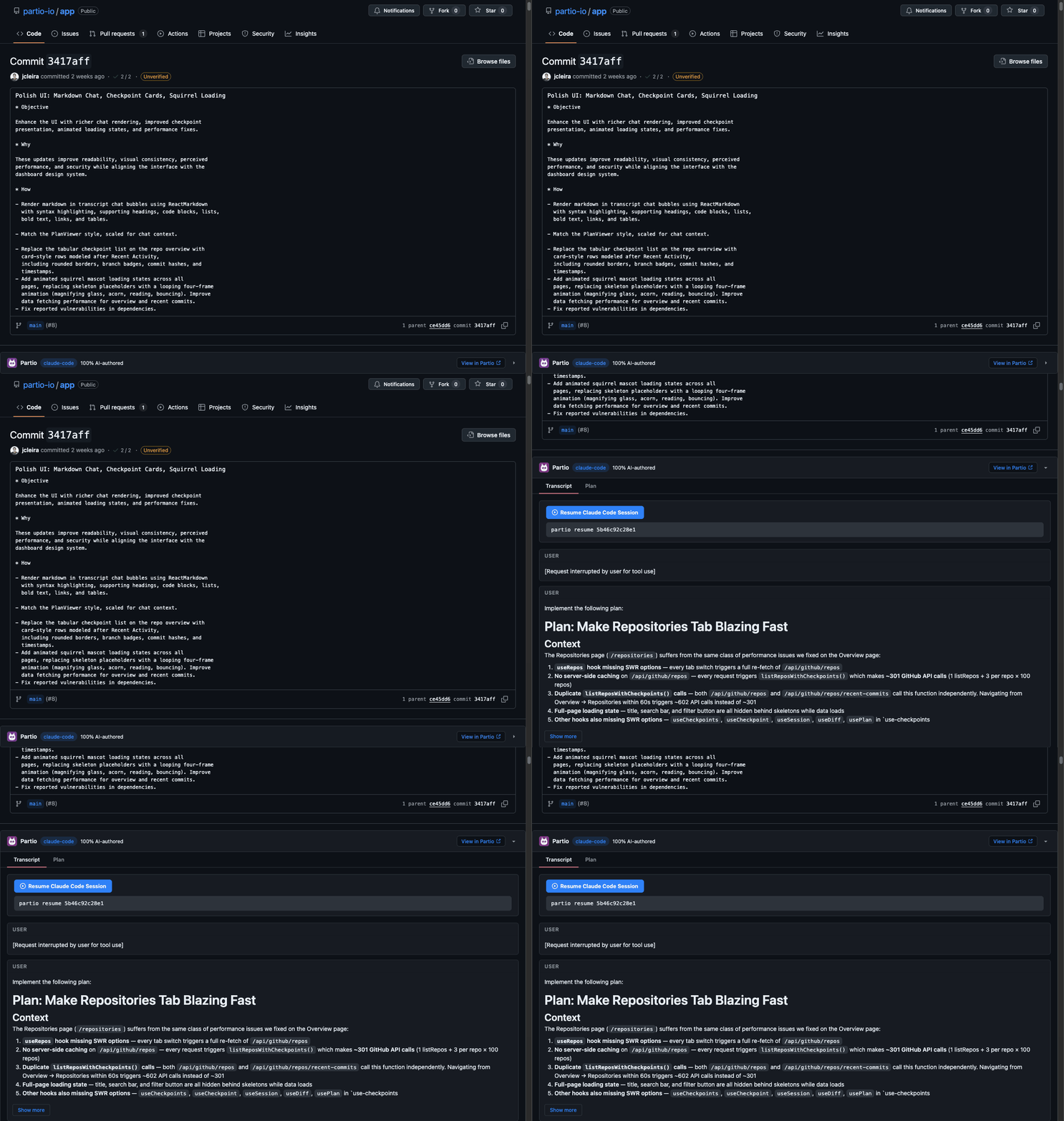
The partio Chrome extension surfaces checkpoint data — agent transcripts, plans, and authorship stats — directly on GitHub commit and pull request pages. Instead of switching to the dashboard, you can review what an AI agent did right where you already review code.
 ## Installation
Install the extension from the [Chrome Web Store](https://chromewebstore.google.com) and it will be ready to use immediately after connecting your account.
1. Clone the extension repository and build it:
```bash theme={null}
npm install
npm run build
```
2. Open `chrome://extensions` in Chrome
3. Enable **Developer mode** (top right)
4. Click **Load unpacked** and select the `dist/` directory
## Connecting to Partio
The extension needs two things to work: a session with [app.partio.io](https://app.partio.io) and a GitHub token with `repo` scope.
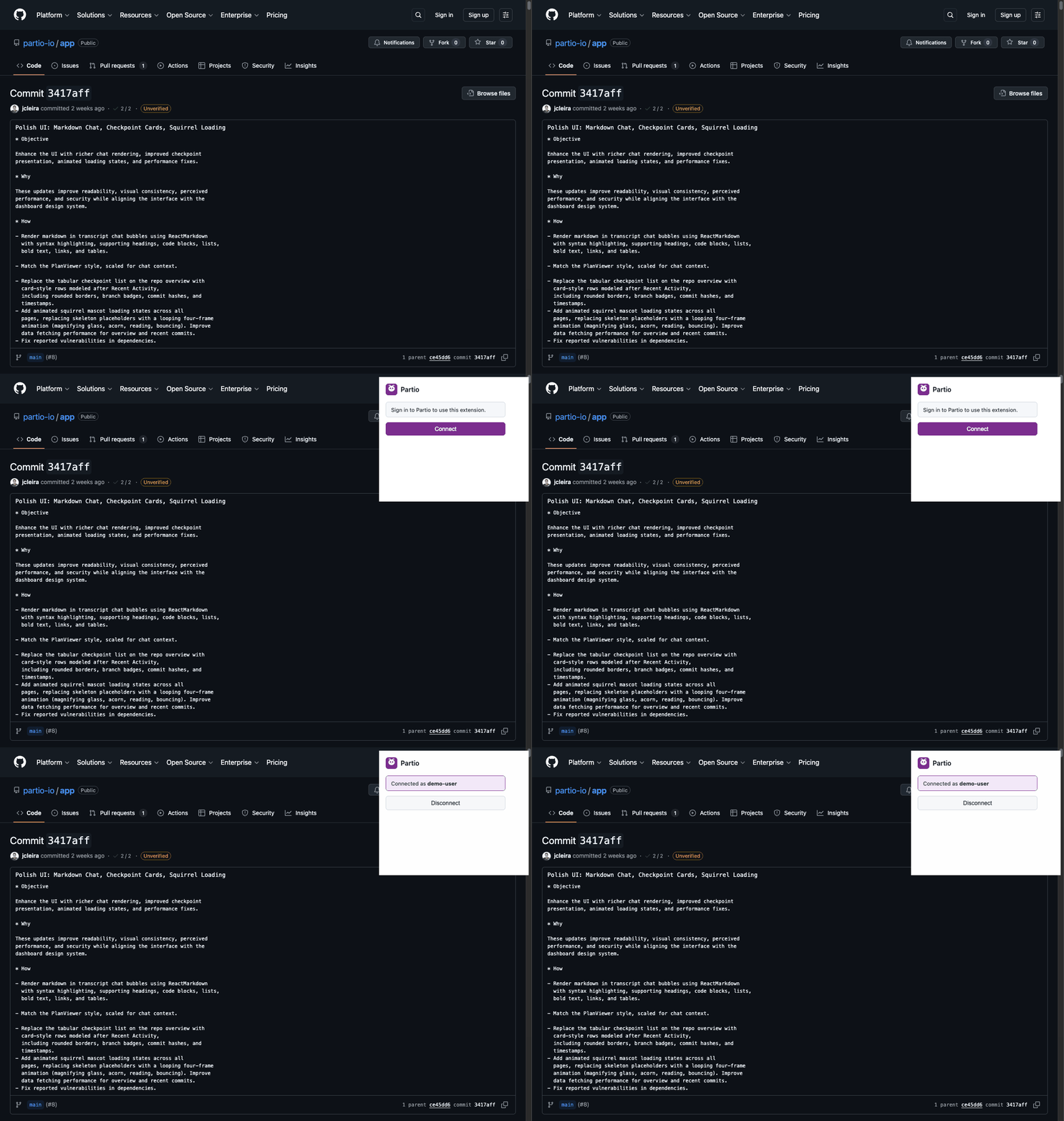
1. Click the Partio icon in your browser toolbar to open the popup
2. Click **Connect** — if you're already signed in to app.partio.io, it connects automatically
3. If you're not signed in, a new tab opens to `app.partio.io/login` — sign in with GitHub, then return to the popup
Once connected, the popup shows your GitHub username and a **Disconnect** button. The extension auto-refreshes your session when cookies change, so you stay connected across browser restarts.
## Installation
Install the extension from the [Chrome Web Store](https://chromewebstore.google.com) and it will be ready to use immediately after connecting your account.
1. Clone the extension repository and build it:
```bash theme={null}
npm install
npm run build
```
2. Open `chrome://extensions` in Chrome
3. Enable **Developer mode** (top right)
4. Click **Load unpacked** and select the `dist/` directory
## Connecting to Partio
The extension needs two things to work: a session with [app.partio.io](https://app.partio.io) and a GitHub token with `repo` scope.
1. Click the Partio icon in your browser toolbar to open the popup
2. Click **Connect** — if you're already signed in to app.partio.io, it connects automatically
3. If you're not signed in, a new tab opens to `app.partio.io/login` — sign in with GitHub, then return to the popup
Once connected, the popup shows your GitHub username and a **Disconnect** button. The extension auto-refreshes your session when cookies change, so you stay connected across browser restarts.
 If you explicitly disconnect via the popup, the extension won't auto-reconnect even if you're still signed in to app.partio.io. Click **Connect** again to re-enable.
## Supported GitHub Pages
The extension activates on four types of GitHub pages:
| Page type | URL pattern | What the extension does |
| ------------------ | -------------------------------- | ------------------------------------------------- |
| **Commit** | `/owner/repo/commit/sha` | Shows checkpoint panel with transcript and plan |
| **Pull request** | `/owner/repo/pull/N` | Shows checkpoint panel for the PR's head commit |
| **PR commit view** | `/owner/repo/pull/N/commits/sha` | Shows checkpoint panel for the specific commit |
| **Commit lists** | Any page with commit links | Adds badge icons to commits that have checkpoints |
The extension listens for GitHub's SPA navigation events (`turbo:load`, `pjax:end`), so panels and badges update as you navigate without full page reloads.
## How It Works
The partio CLI stores checkpoint data on a `partio/checkpoints/v1` orphan branch in your repository. The extension reads this branch via the GitHub API to fetch metadata, session transcripts, and plans — then renders them inline on the page.
No data leaves your browser except API calls to GitHub (to read checkpoint data) and app.partio.io (for authentication). See [Troubleshooting](/extension/troubleshooting) for privacy details.
## Next Steps
* [Features](/extension/features) — detailed walkthrough of the checkpoint panel, commit badges, and discovery logic
* [Troubleshooting](/extension/troubleshooting) — common issues and how to resolve them
If you explicitly disconnect via the popup, the extension won't auto-reconnect even if you're still signed in to app.partio.io. Click **Connect** again to re-enable.
## Supported GitHub Pages
The extension activates on four types of GitHub pages:
| Page type | URL pattern | What the extension does |
| ------------------ | -------------------------------- | ------------------------------------------------- |
| **Commit** | `/owner/repo/commit/sha` | Shows checkpoint panel with transcript and plan |
| **Pull request** | `/owner/repo/pull/N` | Shows checkpoint panel for the PR's head commit |
| **PR commit view** | `/owner/repo/pull/N/commits/sha` | Shows checkpoint panel for the specific commit |
| **Commit lists** | Any page with commit links | Adds badge icons to commits that have checkpoints |
The extension listens for GitHub's SPA navigation events (`turbo:load`, `pjax:end`), so panels and badges update as you navigate without full page reloads.
## How It Works
The partio CLI stores checkpoint data on a `partio/checkpoints/v1` orphan branch in your repository. The extension reads this branch via the GitHub API to fetch metadata, session transcripts, and plans — then renders them inline on the page.
No data leaves your browser except API calls to GitHub (to read checkpoint data) and app.partio.io (for authentication). See [Troubleshooting](/extension/troubleshooting) for privacy details.
## Next Steps
* [Features](/extension/features) — detailed walkthrough of the checkpoint panel, commit badges, and discovery logic
* [Troubleshooting](/extension/troubleshooting) — common issues and how to resolve them