

Repository Detail
When you click into a repository, the dashboard shows a tabbed interface for exploring that repo’s data. The URL pattern is/:owner/:repo.
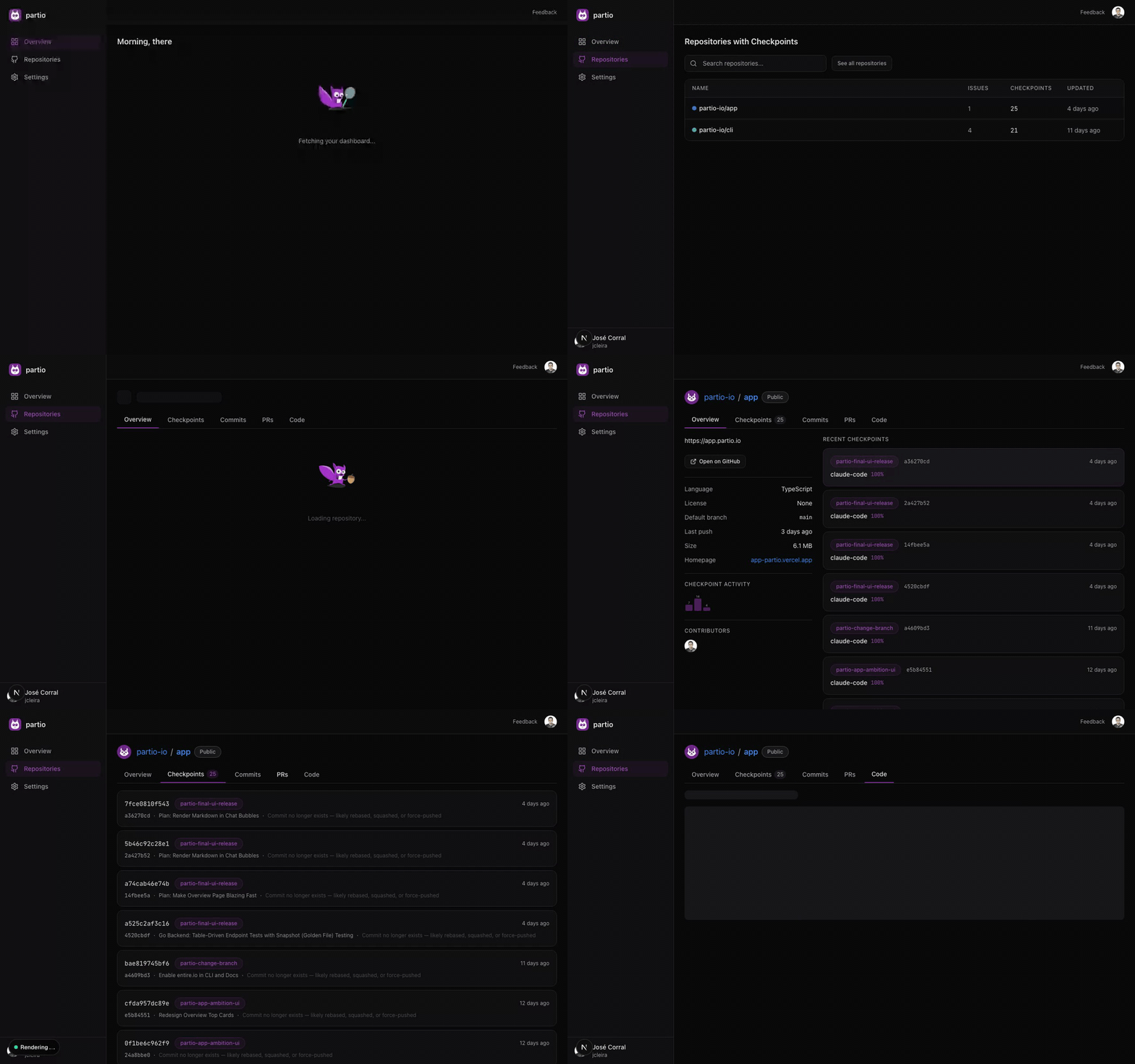
Header
The repo header displays:- Owner and repo name with the owner’s avatar
- Visibility badge (Public or Private)
- Tab navigation with count badges
Tabs
Overview
A two-column layout showing the most important information at a glance. Sidebar (left, hidden on mobile):- Repository description and topics
- “Open on GitHub” link
- Metadata: language, license, default branch, last push date, repo size, homepage
- Checkpoint activity chart (weekly line chart)
- Contributor avatars
- Recent Checkpoints — The latest 10 checkpoints as cards showing branch, commit hash, timestamp, agent name, and AI authorship percentage
- Open Pull Requests — Currently open PRs with author, labels, and comment count
Checkpoints
A list of all partio checkpoints for this repository. Each checkpoint card shows:- Checkpoint ID (full hash)
- Branch name badge
- Relative creation time
- Commit hash (first 8 characters)
- Commit message (first line) or plan title
- Warning icon if the associated commit no longer exists (e.g., after a rebase or squash)
Commits
Browse the Git commit history for any branch:- Branch selector dropdown at the top (defaults to the repo’s default branch)
- Each commit shows the short SHA, message, author avatar and name, and relative date
- Commits linked to a checkpoint display a link indicator
PRs
View pull requests with state filtering:- Filter by Open, Closed, or All
- Each PR shows the number, title, author, state badge (open/closed/draft/merged), labels, dates, and comment count
Code
A file browser for the repository’s source code:- Directory view — Table with file/folder names and sizes, with folder and file icons. Click to navigate deeper.
- File view — Syntax-highlighted code display with language auto-detection, copy button, and “See on GitHub” link.
- Breadcrumb navigation — Path hierarchy with clickable segments to navigate up.