

Settings & Themes
The Settings page (/settings) lets you customize the look of your dashboard with themes from the OMARCHY theme registry.
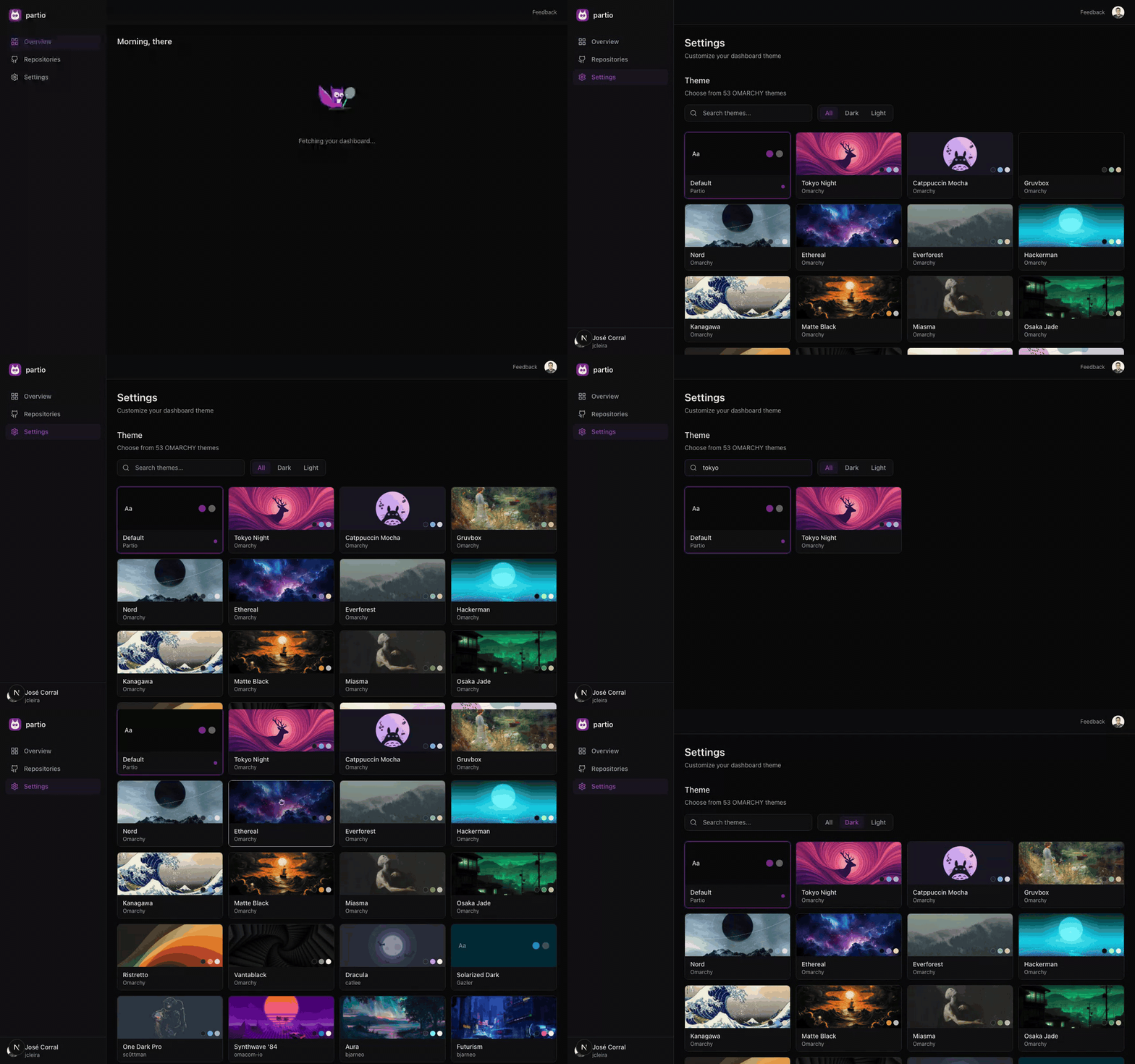
Theme Library
The dashboard ships with 50+ themes from two sources:- Official themes (14) — Curated themes from the OMARCHY project, including Tokyo Night, Catppuccin, Gruvbox, Nord, Everforest, and more.
- Community themes (36+) — Contributed by the community, including Dracula, Synthwave ‘84, Aura, One Dark Pro, and others.
- Preview color swatches
- Theme name and author
- A checkmark badge on the currently active theme
Filtering
Use the controls at the top of the page to narrow down themes:- Search — Filter themes by name or author
- Type tabs — Switch between All, Dark, and Light themes
Applying a Theme
Click any theme card to apply it. The dashboard updates instantly — all colors across the interface change to match the selected theme. Your choice is saved to local storage and persists across sessions. Click “Reset to default” to return to the default purple dark theme.Wallpaper
Some themes include background wallpaper images. When available, use the wallpaper toggle to enable or disable the background image for the current theme.How Themes Work
Themes define 12 color variables that control the entire UI:
Theme colors are fetched from their source repository (GitHub raw files), parsed from various formats (TOML, Alacritty, Ghostty), and applied as CSS custom properties.